Google Tasks
- 4.6
- Rating
- 10.00M
- Installs
- Free
- Price
 Analysis by App-foxy
I use Google Tasks as a quiet place to capture the things I need to remember before they become distracting. It is a free productivity app from Google LLC, aimed at people who want a straightforward to-do list rather than a full project-management system. After spending time with it, I found its biggest strength is not an impressive collection of tools, but the way it fits naturally into a Google-centered routine.
The app is easy to understand within minutes. I can create a task, add a due date, give it a time, and split a larger job into smaller steps. That simplicity makes it comfortable for shopping lists, appointments, study reminders, household chores, and work follow-ups. At the same time, its narrow focus means it will not satisfy everyone. If you need detailed collaboration, visual planning, habit tracking, or a large database of notes, you will probably outgrow it.
How Google Tasks feels when your routine depends on a connection
The most important thing to understand is that Google Tasks feels best when it is part of the wider Google Workspace environment. The app is not just a blank checklist sitting separately on my phone. Its usefulness grows when tasks are connected to the calendar and email habits I already have. A message that needs a response, a meeting that requires preparation, or a personal errand can become a reminder without forcing me to maintain an entirely separate productivity system.
You May Also Like

 Blood Strike: 2.5 Anniversary
Blood Strike’s Loadouts Turn Every Drop Into a Tactical Gamble
A close look at Blood Strike’s custom loadouts: how fast access to signature weapons reshapes its battle royale rhythm, rewards preparation, and narrows the gap between fights.

 Pandora - Music & Podcasts
Pandora’s Music Is Easy to Start, but Harder to Recover
Pandora’s strength is its low-effort path from a seed to a station. Its weak spot is how much confidence it asks you to place in connection, setup, and quiet recovery.

 8 Ball Pool
 Is Built on Rivalries, Rematches, and Routine
A close look at the rivalries, rematches, shared routines, and unanswered safety questions that turn a quick pool match into a persistent mobile community.

 Samsung Music
’s Quiet Strength Is Playing What You Already Own
Its reach comes less from spectacle than from dependable access to a personal library. That simplicity is both the app’s strongest retention engine and its ceiling.

 AccuWeather: Weather Radar
AccuWeather Review: A Quick, Clear Forecast for Everyday Decisions
For everyday plans, the best forecast is the one you can understand quickly. AccuWeather makes rain timing, radar, and local conditions easy to act on, with a few trade-offs.

 Hill Climb Racing
Why Hill Climb Racing Still Turns Crashes Into One More Run
A tiny car, a bumpy hill and one more upgrade: Hill Climb Racing keeps resurfacing because its simple chaos makes every near-miss feel personal.
More From Our News Desk



That connected approach also shapes the moments when I use it. When the phone has a reliable connection, adding a task feels immediate and reassuring because the information can move naturally between the Google services I use. I can capture an idea while reading an email, then return to it later as part of my task list. This reduces the chance that an important follow-up remains buried in an inbox.
I would not describe the experience as dependent on constant interaction with online services in every second of the day, but connectivity clearly matters to the broader workflow. The most valuable part is not merely typing “call the dentist.” It is being able to place that reminder within the same digital routine as appointments and messages. When that surrounding context is available, the app feels more useful than a basic notes page.
There is a practical trade-off here. A simple standalone checklist can feel more predictable because it asks less of the user and has fewer connections to manage. Google Tasks is more appealing if you already organize your day through Google products. If you rarely use Google Workspace, some of its appeal disappears, and another task manager with stronger independent features may make more sense.
What happens during weak or interrupted connectivity
Network conditions are worth considering before making this your only reminder system. I avoid treating any cloud-connected task app as the sole place for information that is urgent, sensitive, or impossible to reconstruct. If I am traveling through an area with an unreliable signal, I prefer to prepare my important list beforehand and keep critical details somewhere I can reach without depending on a live connection.
This is not a criticism of the app so much as a sensible way to use connected productivity tools. A task list is valuable only if I can see the right information when I need it. Before leaving home, I check the day’s important items, especially anything involving a time, address, or document. That small habit prevents connectivity from becoming a surprise at the worst moment.
I also avoid rapidly editing the same task across several places while moving between unstable networks. When a connection is inconsistent, repeated changes can make any synchronized workflow feel uncertain. My safer routine is to make the essential edit once, wait until the device has a dependable connection, and then confirm that the list looks right. This is a useful recovery habit for anyone who moves between home Wi-Fi, office networks, and mobile data throughout the day.
Using it on a phone without creating more friction
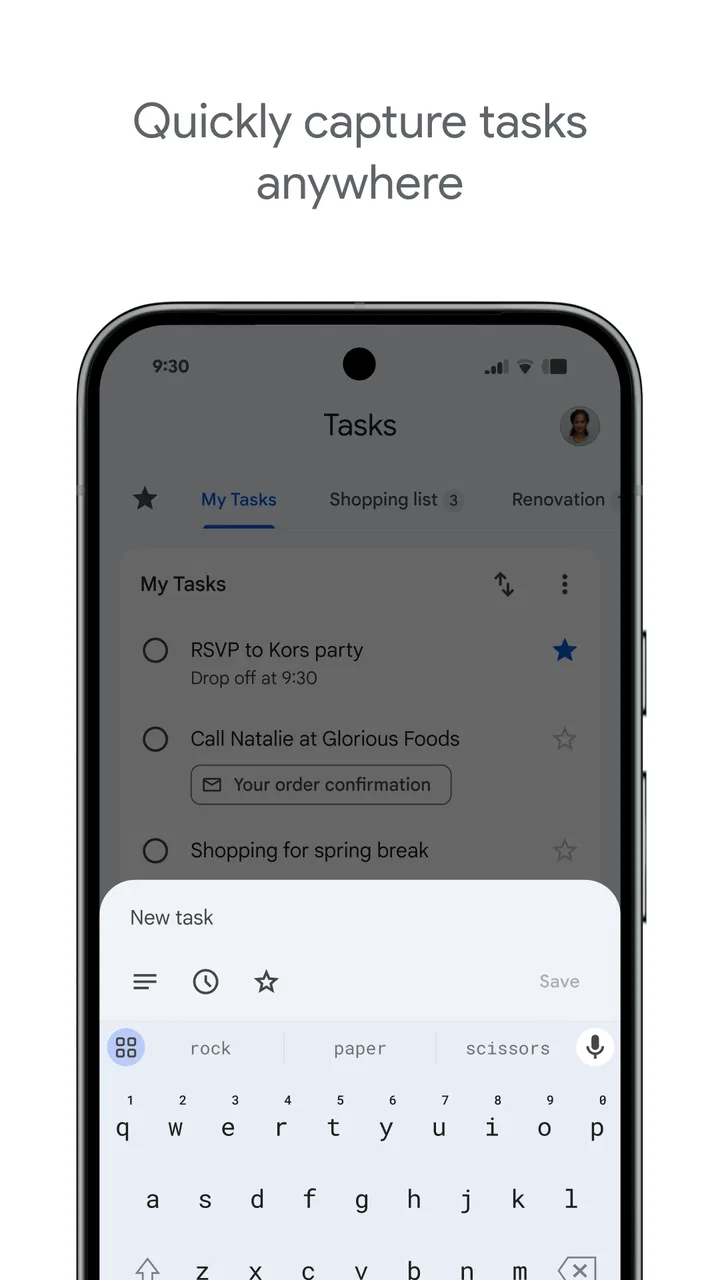
Google Tasks works particularly well for quick mobile capture. I can add a short item while standing in a shop, waiting for an appointment, or walking between errands, then organize it later. The interface does not make me choose a complicated project structure before I can record a thought. That matters because a task that takes too long to enter is often a task I will postpone.
My favorite mobile workflow is to separate capture from cleanup. During a busy moment, I write the smallest useful version of the task, such as “send invoice” or “buy printer paper.” Later, when I have a few quiet minutes, I add a date, time, or subtasks if the item needs more structure. This keeps the phone from becoming a place where I spend too much time arranging lists instead of completing them.
Subtasks are more useful than they first appear. I use them when an item sounds simple but actually contains several actions. “Prepare for the trip” can become checkable steps such as confirming travel details, charging devices, and packing documents. This keeps the main list readable while still giving me a clear path through a larger responsibility. I would not use this as a replacement for a detailed project plan, but it is a good middle ground between a single vague reminder and an overbuilt system.
Dates and times also need thoughtful use. I do not assign a precise time to every task because that quickly turns a flexible list into a crowded schedule. I reserve times for things that genuinely need a prompt or must happen at a specific point. For less urgent work, a date is often enough. This distinction makes the list easier to scan and prevents false precision from making my day feel more rigid than it really is.
For a realistic example, imagine a Monday morning when I receive a message asking me to review a document before a Wednesday meeting. I create a task for the review, set the relevant date, and add subtasks for reading the document, noting questions, and sending feedback. Later, the meeting itself belongs in the calendar, while the preparation remains in Tasks. That division keeps the appointment and the work required for it from competing for the same space.
Recovering when tasks become messy or outdated
Every task list eventually collects abandoned plans, duplicate reminders, and items that no longer matter. Google Tasks is easiest to live with when I treat maintenance as part of the routine rather than waiting for the list to become overwhelming. Once or twice a week, I review old items and make a clear decision: complete them, reschedule them, break them down, or delete them.
The rescheduling decision is especially important. Moving the same task forward repeatedly can create the illusion of progress while hiding a problem with the task itself. When I notice that happening, I rewrite the item as a smaller action. “Organize finances” is too broad for a useful daily reminder; “download last month’s statements” gives me a concrete starting point. This is a productivity lesson, but the app’s simple structure makes it easy to apply.
I also recommend adding enough context to recognize a task later. “Call” is weak. “Call the clinic about the appointment” is much better. Because Google Tasks is intentionally uncluttered, the wording of each item carries a lot of responsibility. The app will not compensate for vague entries with elaborate templates or automatic project logic. Clear writing is part of getting good results from it.
When I complete a task, I like to clear it promptly rather than leaving finished work mixed with open work. A clean active list gives me a more honest picture of what still needs attention. If a completed item may be useful as a record, I handle that need separately instead of turning every finished task into permanent clutter.
Recovery also matters when a task was created in the wrong place. Sometimes I add an item to the list when it should really be a calendar event, an email follow-up, or a note containing background information. I do not force everything into Tasks. I move the information to the tool that matches its purpose and keep only the next action in the checklist. That keeps the app focused and reduces duplication across services.
Being careful with data and notifications
A task list can reveal a surprising amount about a person’s life. It may contain health appointments, financial reminders, travel plans, work responsibilities, or names of people to contact. I therefore keep task wording practical and limited. Instead of writing a long private explanation in a task, I use a short action and place sensitive background information in the appropriate secure service.
This approach also makes the list easier to scan. “Submit insurance form” is usually enough to trigger the next step; I do not need to include every personal detail in the title. For a shared device, a concise wording style reduces the amount of private information exposed on screen. I would still think carefully before putting highly sensitive material into any ordinary task list.
Notifications deserve the same restraint. If every small item receives an alert, I begin ignoring all alerts. I use scheduled prompts for deadlines, appointments, and tasks that are easy to forget at a particular time. For routine items, I prefer a date without turning the phone into a constant source of interruptions. The result is a calmer system that I am more likely to trust.
Connectivity and data use are connected in another way: the more services I involve, the more valuable it becomes to keep my organization deliberate. I avoid creating the same reminder in Tasks, Calendar, email, and a notes app unless there is a clear reason. Duplicate entries do not make me safer; they make it harder to know which version is current. One well-written task, placed in the right context, is usually better than four copies.
People often ask whether this app is suitable for a phone with limited storage or an older device. It supports Android starting with version 6.0, which makes it accessible to a broad range of Android users. Still, the quality of the experience depends on the surrounding Google account and the way a person uses connected services, not only on the app’s minimum operating-system requirement.
Where it stands beside other task apps
Compared with a paper list, Google Tasks offers better organization around dates and a more convenient way to keep work linked to a digital routine. Paper remains attractive for people who want a completely offline, private, distraction-free method. I sometimes prefer paper for brainstorming because it allows freer writing, but I prefer Tasks when I need a reminder to remain visible beyond the moment I wrote it.
Compared with a notes app, Tasks has a clearer purpose. Notes are better for reference material, meeting details, ideas, and long explanations. Tasks are better for actions that can be marked complete. I get the best result when I do not ask a single tool to handle both jobs. A short task can point toward a note, but the checklist itself should remain action-oriented.
Compared with large project-management apps, Google Tasks is refreshingly light. It does not make me configure boards, labels, complex dependencies, or elaborate team structures before I can start. That is a strength for personal errands and modest workloads. The same simplicity becomes a limitation for teams that need assignments, detailed status tracking, resource planning, or a visual overview of many projects.
Compared with a dedicated calendar, Tasks is better for flexible work and Calendar is better for fixed commitments. I do not put “research vacation options” into a calendar slot unless it truly must happen at that time. I place the action in Tasks and reserve the calendar for the appointment or deadline. This separation helps me distinguish time that is already taken from work that still needs to be fitted into the day.
The app is also less suitable for people who want built-in motivation systems, extensive customization, or a rich personal knowledge base. Its value comes from reducing friction, not from turning productivity into a game or a design project. If customizing colors, views, tags, and workflows is the main reason you enjoy a task manager, you may find this one restrained.
Who should use it and who should look elsewhere
I recommend Google Tasks to someone who wants a clean personal checklist and already spends time in Google’s ecosystem. It is especially good for turning emails and everyday responsibilities into visible next actions. Students can use it for assignment steps, workers can track follow-ups, and households can maintain practical lists without learning a complicated system.
It is also a good choice for people who repeatedly forget small commitments rather than people managing large, interdependent projects. The app’s low barrier encourages regular capture, and its subtasks provide just enough structure for many personal jobs. A person who dislikes elaborate productivity methods may appreciate that it does not demand a new philosophy before becoming useful.
I would suggest another option for a team that needs deep collaboration, for someone who requires a robust offline-first workflow, or for anyone who wants extensive task metadata and reporting. I would also hesitate to recommend it as the only place for critical information during travel through unreliable connectivity. In those cases, a tool chosen specifically for offline access, collaboration, or detailed project control may be safer and more capable.
Google LLC has kept the product focused rather than turning it into an all-purpose workspace. That focus explains why it can feel pleasantly calm, but it also explains why advanced users may find its ceiling quickly. The current version, 2026.02.23.873796739.0-release, fits into that same straightforward identity: this is a practical task companion, not a complete productivity command center.
My final view after using it regularly
Google Tasks earns its place through consistency. I can open it, record an action, give it an appropriate date, and return later without navigating a complicated system. Its connection to Google Workspace is the main reason I would choose it over a generic checklist, while its limited project and collaboration features are the main reasons I would not recommend it to everyone.
The best results come from using it with a few disciplined habits: capture quickly, write tasks as visible actions, use subtasks for hidden steps, reserve times for genuine time-sensitive work, and review stale items before they take over the list. I also keep connectivity in mind by checking important tasks before entering areas where my connection may be unreliable and by avoiding unnecessary duplicates across apps.
With a 4.6 average from around 558 thousand ratings and more than 10 million installs, it is clearly a familiar choice for many Android users. It is free, rated for Everyone, and has been available since April 24, 2018. Those details do not make it automatically right for every person, but they match my impression of an accessible tool designed for everyday use rather than specialist productivity work.
My recommendation is simple: choose Google Tasks if you want a focused, connected checklist that stays close to your Google routine. Skip it if you need powerful collaboration, extensive customization, or a workflow built around dependable offline access. For personal reminders, email follow-ups, errands, and manageable projects, Google Tasks is one of the easiest options to start using without creating more work than it removes.
FAQs for Google Tasks
01What features does Google Tasks offer for task management?
Google Tasks provides a simple and intuitive interface for managing tasks. You can create, edit, and delete tasks, organize them into lists, and set deadlines with notifications. It integrates seamlessly with Google Calendar and Gmail, allowing you to track your tasks alongside your emails and events. This makes it easier to stay organized across all your devices.
02Is Google Tasks available offline, and how does it sync?
Google Tasks requires an internet connection to sync across devices, but you can access tasks offline in the mobile app. Any changes made offline will sync automatically once you reconnect to the internet. This feature ensures that your task list is always up-to-date, whether you're using your phone, tablet, or computer.
03Can I share my task lists with others using Google Tasks?
Currently, Google Tasks does not support direct sharing of task lists with other users. It's designed for individual task management. However, you can share tasks indirectly by copying lists into Google Keep or Google Docs, which do offer sharing capabilities. This might be a limitation for users looking for collaborative task management tools.
04How does Google Tasks integrate with other Google services?
Google Tasks integrates seamlessly with Google Calendar and Gmail. You can add tasks directly from your Gmail interface and view them alongside your calendar events. This integration helps you manage your schedule more effectively by allowing you to see deadlines and tasks in one place, streamlining your productivity across Google's ecosystem.
05Is there a cost to use Google Tasks, and are there any premium features?
Google Tasks is completely free to use with no hidden costs or premium features. It is available to anyone with a Google account, making it accessible for personal and professional use. The simplicity and cost-free nature of Google Tasks make it an excellent choice for users looking for a straightforward task management solution.
Pros
- Seamlessly integrates with Google Workspace.
- Simple and user-friendly interface.
- Syncs across all devices effortlessly.
- Allows for easy task prioritization.
- Supports voice input for task creation.
Cons
- Limited features compared to competitors.
- No offline mode available.
- Lacks advanced project management tools.
- No native calendar view included.
- Cannot share tasks with other users.

Google Tasks
Gallery